Three things to do: get the parts, install the app, plug in. No toolchains, no terminal, no yak.
1. The parts
| Part | What to get |
|---|---|
| The hands | An ESP32-S3 dev board with two USB-C ports, labelled COM and USB. About ten bucks. We test on the YD-ESP32-23; details in the hardware guide. |
| The eyes | A USB HDMI capture card, the cheap generic kind (it just has to be a normal USB video device). No drivers. Optional: without one you get no picture, but you can still type and click. |
| The brain | Your computer, on Windows 11, Linux or macOS (Apple silicon), with Bluetooth LE. The target can be anything with a USB port and an HDMI output, running anything or nothing. |
2. The app
Windows 11: download kvmit-vX.Y.Z-windows-x64.msi from the download page (or the Releases page) and
double-click it. That adds kvm-it to your Start menu. Prefer no installer? Grab the .zip, unzip it anywhere, and run
kvmit-gui.exe. It is one self-contained program that uses only what Windows already has.
Linux: download kvm-it-X.Y.Z-x86_64.AppImage, chmod +x it, run it. It wants BlueZ and the desktop libraries any
normal distro (Debian 12 / Ubuntu 22.04 or newer) already has.
macOS (Apple silicon): download kvm-it-X.Y.Z-macos-arm64.dmg, open it and drag kvm-it to
Applications. It is not notarized yet, so the first time macOS blocks it: open System Settings > Privacy & Security and
click Open Anyway. It asks for Bluetooth and Camera access when it first needs them; to send Cmd+Tab and friends to
the target, add kvm-it under Privacy & Security > Accessibility (Ctrl+Option+Esc releases capture).
No Rust. No Docker. No DLL scavenger hunt. If you can double-click an installer, you are done with this step. (Building from source is for tinkerers: developing.md.)
Two small Windows things: you need a graphics driver with OpenGL 2.0 or newer (any real PC has one; the app tells you if not), and for the video, Settings > Privacy & security > Camera > Let desktop apps access your camera must be on.
3. Flash the adapter (once, in the app)
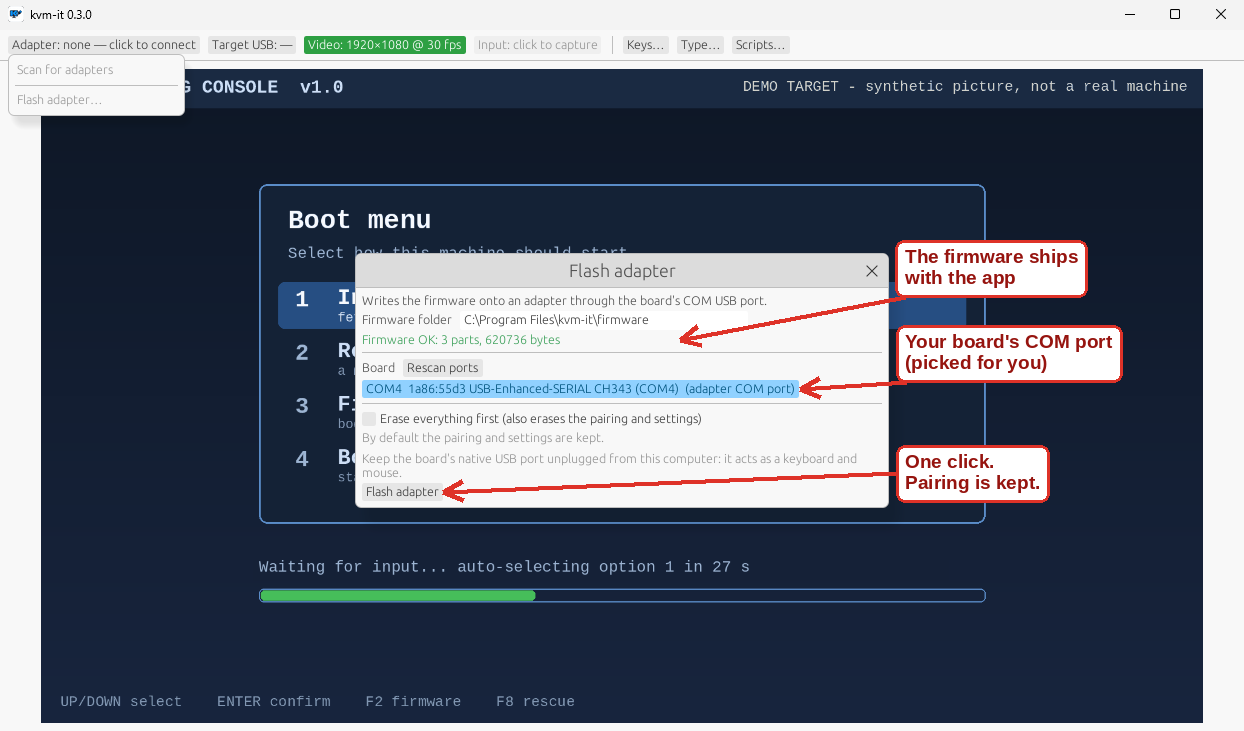
- Plug the board’s COM port into your PC. Leave the other one (USB) unplugged. That one is a real keyboard and mouse that takes orders from kvm-it, and plugged into the computer you are flashing from it would be typing into your own machine. (kvm-it refuses to flash if it spots one.)
- Open kvm-it, click the Adapter chip, Flash adapter…, Flash adapter.
- Wait for Flashed and verified. That is the whole job.
The firmware ships inside the app, so there is nothing to download. If your adapter was already running kvm-it, its pairing
survives; if it is straight out of the bag, tick Erase everything first (there is no pairing to lose yet). Command-line
fans: kvmit flash. (Verified on boards that already had firmware; a factory-fresh board has not been through it yet, so
tell us how it goes.)
4. Pair (once)
- Move the cable: plug the adapter’s USB port into the target. (COM can stay plugged in or not.)
- For 15 seconds after it powers up, it accepts a new pairing. Missed it? Press BOOT briefly: that reopens the window for 5 minutes. No physical access, no pairing. That is the entire security model, and it is a feature.
- In kvm-it: Adapter chip, Scan for adapters, Pair & connect. On Windows this pairs with no system dialog at all.
From then on, move the cables to the next machine and the app reconnects by itself.
5. Drive
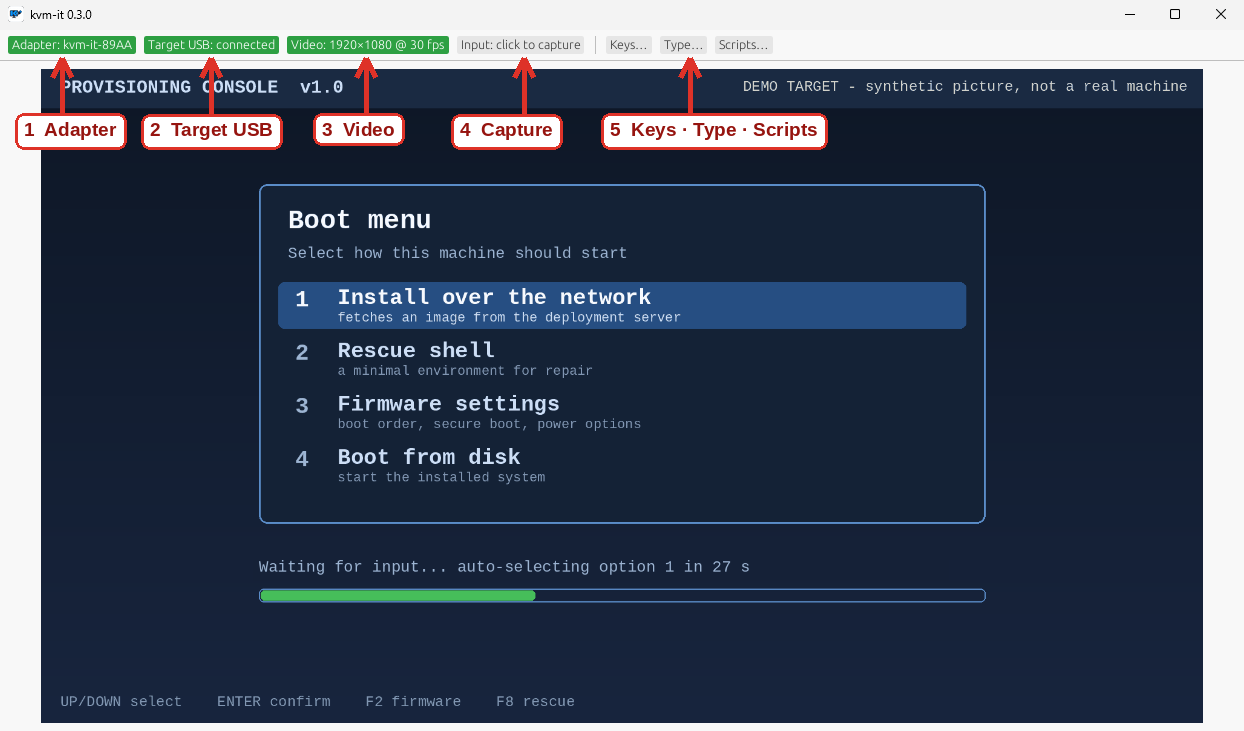
The top bar is the whole control panel; the picture is the rest of the window. Green is working, amber is in progress, red is broken, grey is idle.
- Adapter: is it connected? Click it to scan, pair, disconnect, flash.
- Target USB: does the target see the adapter as a keyboard and mouse? (An indicator, not a button.)
- Video: click it, pick your capture card, and the target’s screen appears. One click switches cards; Rescan finds one you plugged in later.
- Capture: click the picture (or this chip). Your keyboard and mouse now belong to the target.
- Keys · Type · Scripts: the three buttons that do the clever bits, below.
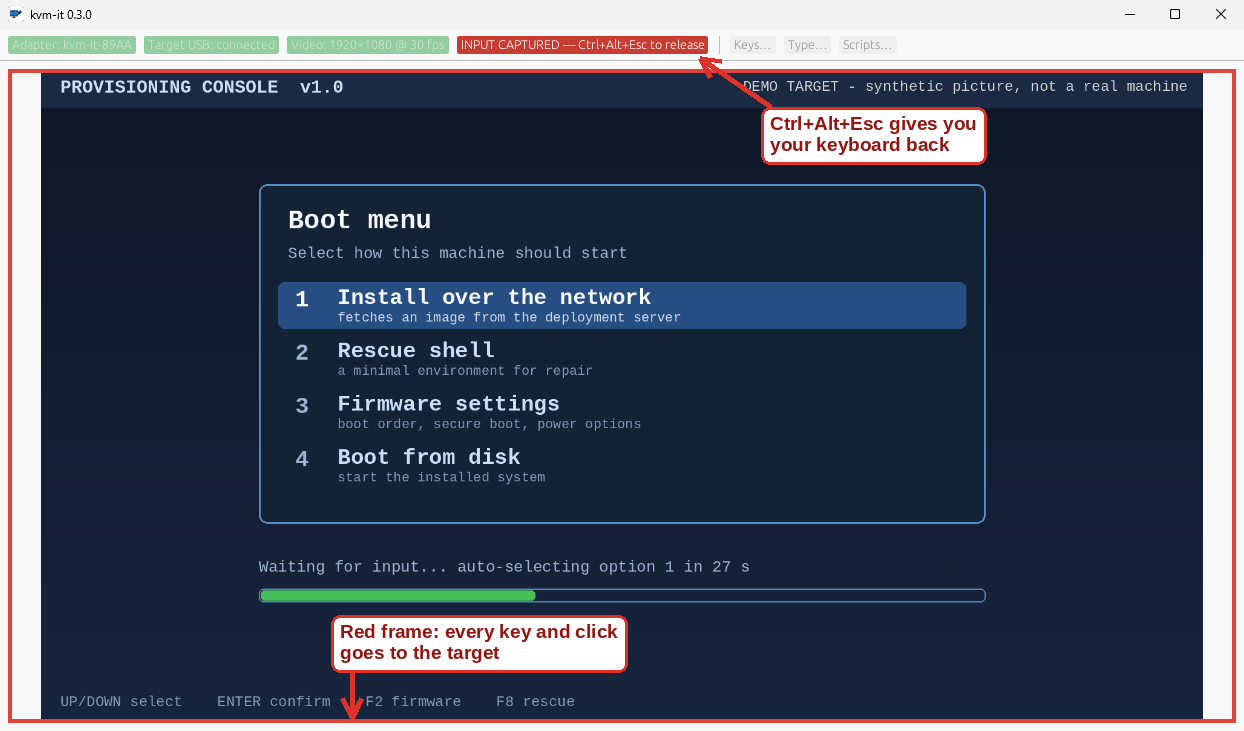
Getting out: press Ctrl+Alt+Esc. That chord is never sent to the target, so it can never get stuck over there. On Windows, keys your PC would normally keep for itself (Win, Alt+Tab, Ctrl+Esc, Alt+F4) go to the target too while you are captured.
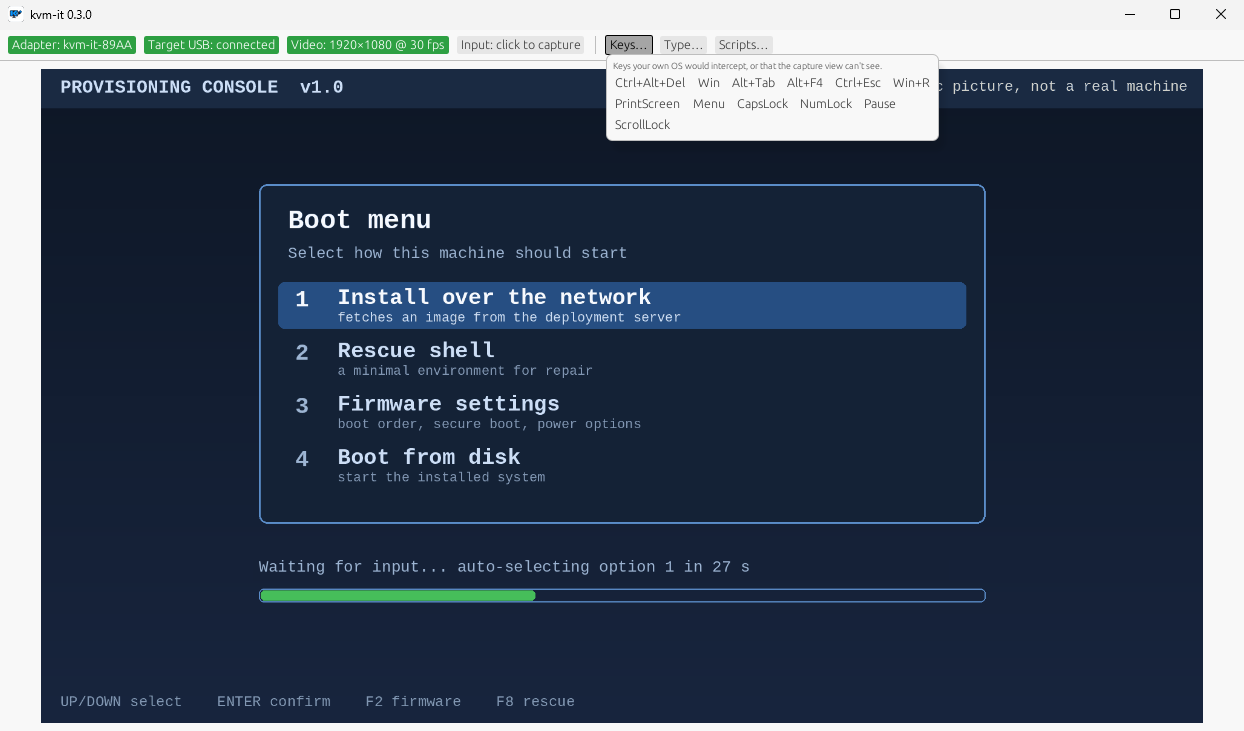
Keys sends the chords your PC would swallow: Ctrl+Alt+Del, Win, Alt+Tab, PrintScreen and friends. (Ctrl+Alt+Del and Win+L cannot be intercepted by any program on Windows, so this is how you send them.)
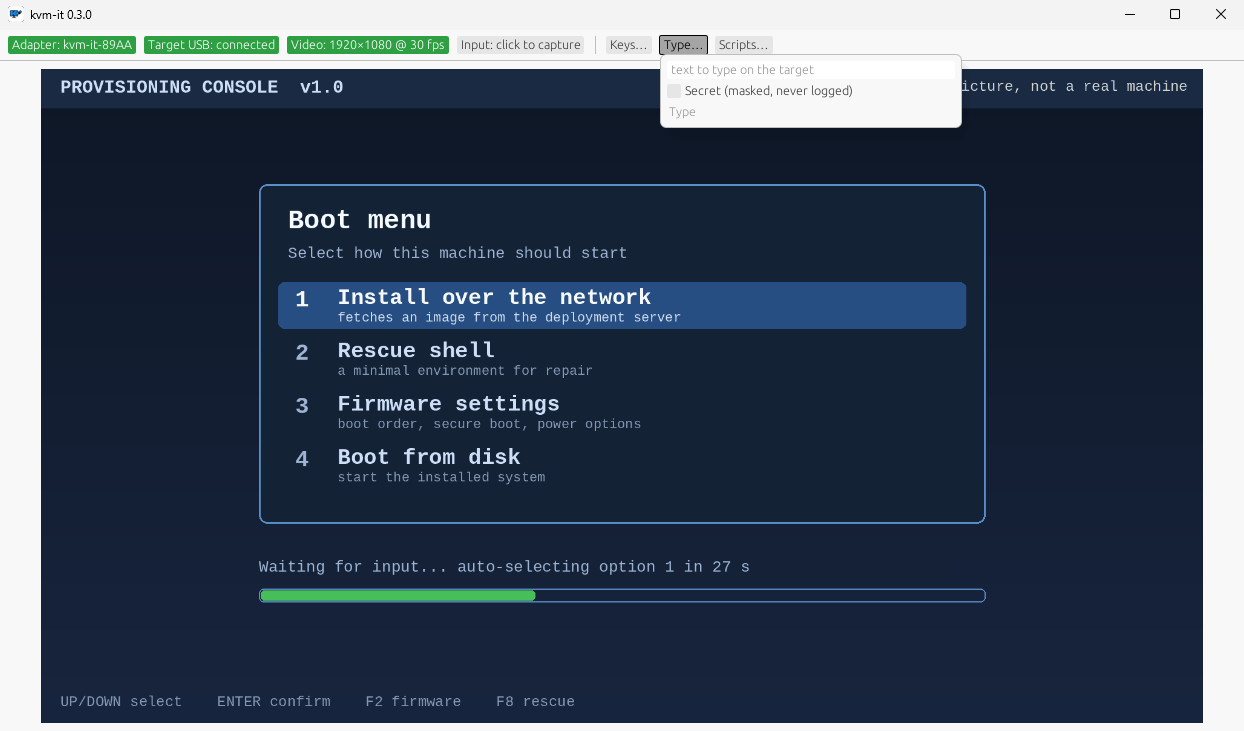
Type types a string for you. Tick Secret for passwords: masked, never logged, never saved.
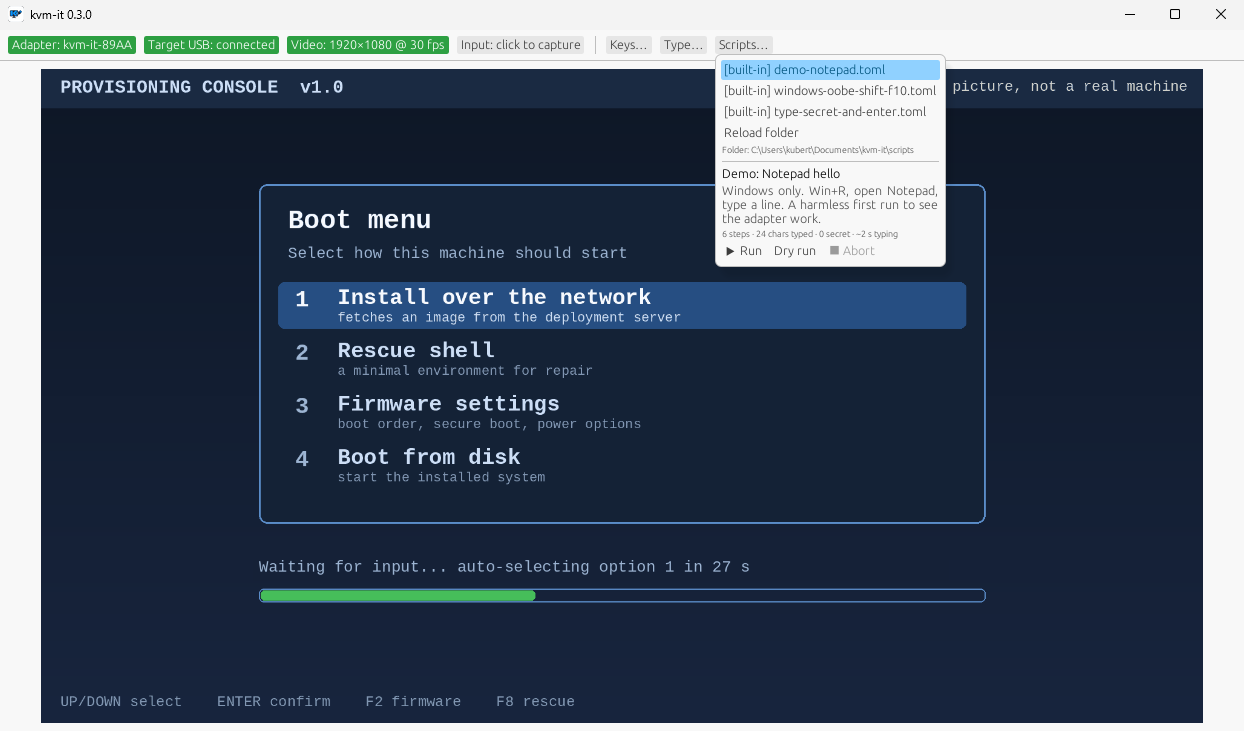
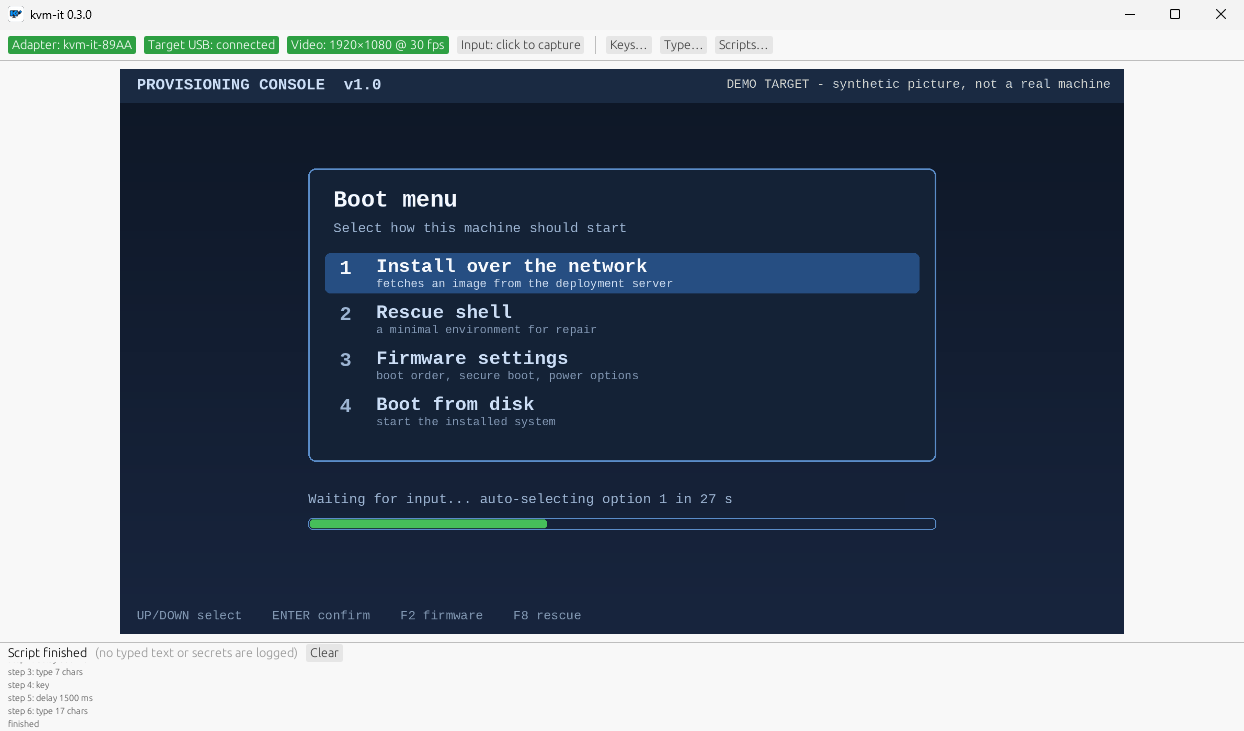
Scripts replays a setup flow: Windows OOBE, an installer, a BIOS tour. Drop .toml or DuckyScript files in your scripts folder
(~/Documents/kvm-it/scripts), pick one, read the preview, Dry run it first (it types nothing), then Run. Abort leaves nothing
held down. More in scripts and replay.
Everything is also on the command line:
kvmit scan
kvmit status
kvmit type "hello"
kvmit key ctrl alt delete
kvmit run setup.toml --dry-run
kvmit import payload.txt
kvmit flash
Several adapters at once. Run one kvmit run per target, each naming its own adapter and capture card. Take the card’s
key from kvmit video list rather than its path: the key stays the same while a card stays in the same USB port, but
two identical cards can swap /dev/videoN numbers when replugged.
A script that never waits on the screen does not need --video. Without it, run uses the card you last opened in the
app if it is connected; if you never opened one, the only card connected. Otherwise (that card unplugged, several
cards, a remembered card the system names without a location) it stops and asks rather than guess. With more than one
target, always give --video: if one target’s card is unplugged, “the only card connected” is another target’s.
kvmit video list        # /dev/video2  USB3 Video  (key: USB3 Video @ usb-0000:00:14.0-1)
kvmit --device AA:BB:CC:00:00:01 run setup.toml --video "USB3 Video @ usb-0000:00:14.0-1" --yes &
kvmit --device AA:BB:CC:00:00:02 run other.toml --video "USB3 Video @ usb-0000:00:14.0-2" --yes &
wait
Each run is independent, with its own exit status: a failure, or stopping one process, leaves the others running. Every
adapter shares the computer’s Bluetooth radio, so how many run smoothly at once has not been measured yet. A run started
in the background cannot answer prompts: give values with --var, and run scripts that ask for a secret or have a
confirm step in a terminal of their own.
6. Boot a machine from the network (new in 0.4.0)
The adapter can also be a tiny read-only USB drive with iPXE on it, so a machine with nothing on it can fetch an installer, WinPE or a rescue image over the network, driven from your desk. It is off until you turn it on, so by default your target sees only a keyboard and mouse. (The setting is remembered, so it stays on across power cycles until you turn it off.)
- In kvm-it, click the Adapter chip and Boot drive: Turn on (restarts adapter). (Command line:
kvmit boot-drive on.) The adapter restarts, so the target sees it re-plug, and the drive appears. Turn it off the same way when you are done. - With the adapter’s USB port in the target, open the target’s boot menu (usually F12, F11 or Esc at power-on; kvm-it’s Keys button can press them for you) and pick the entry that says kvm-it (listed as a USB device, “UEFI kvm-it kvm-it HID adapter…”).
- iPXE starts and says press any key to boot from the network. Press a key within five seconds and it asks your network for an address and opens the iPXE project’s public demo menu, which proves the whole path without a server of your own. (If you do nothing it exits and the target carries on with its normal boot order, so a target that happens to boot USB first is not hijacked.)
The drive is read-only by design: the adapter reports it write-protected and rejects every write, so nothing on the target can ever change it.
If a target’s firmware dislikes the extra drive, turn it off (the adapter goes back to presenting just a keyboard and mouse), or flash the previous firmware
from the 0.3.0 release with kvmit flash --firmware <its firmware folder>; your pairing is kept.
Honest limits for now: UEFI only (not legacy BIOS). Secure Boot can stay on on firmware that trusts Microsoft’s third-party UEFI CA, because the drive carries the iPXE
project’s signed shim and iPXE; but then iPXE only starts signed things (Windows PE through wimboot is fine; an unsigned Linux kernel is refused with “Security Policy
Violation”), and some locked-down PCs turn that CA off and refuse the drive. All of that has been run in a virtual machine, not yet on a real PC. And the boot script on the
drive is the demo until editing it from the app lands (developers can change it today: developing.md).
When something is off
- Read the chips first. They say which link is the problem.
- The app will not start and shows an OpenGL message: update the graphics driver. (A virtual machine with no GPU needs a software OpenGL.)
- Video says not opened, or stops: is the card plugged in, and is nothing else using it? On Windows, check the camera setting above.
- The adapter never appears in a scan: replug it (15-second window) or press BOOT, then scan again. More in the hardware guide.
- Keys stuck on the target: Release all keys in the Adapter popup. If the app crashes, the adapter lets go of everything by itself within a few seconds (designed that way; not yet verified on hardware).
- The target does not offer a “kvm-it” boot entry, or says “Access Denied”: the boot drive is UEFI-only. If it refuses the signed shim, that firmware does not trust Microsoft’s third-party CA (some locked-down machines); tell us the model. “Security Policy Violation” after iPXE starts means the thing you chained to is not signed (see step 6).
- Flashing says an Espressif USB device is plugged in: that is the safety check. Unplug the board’s USB port (and any other ESP board) from this computer; keep only COM.
Treat it with care
kvm-it types into other machines, including credentials. Read the security model before you point it at anything you care about.