 SpoolSmith
- Find the right driver on the vendor’s site, for the right Windows version
- Run a vendor installer, or click through Add Printer and hope the port is right
- Re-enter the same address and settings on every PC
- Repeat it, and never be quite sure two PCs ended up the same
Printer setup, ready to repeat
A little less
printer setup.
One PC already prints.
Double-click to give it to the next.
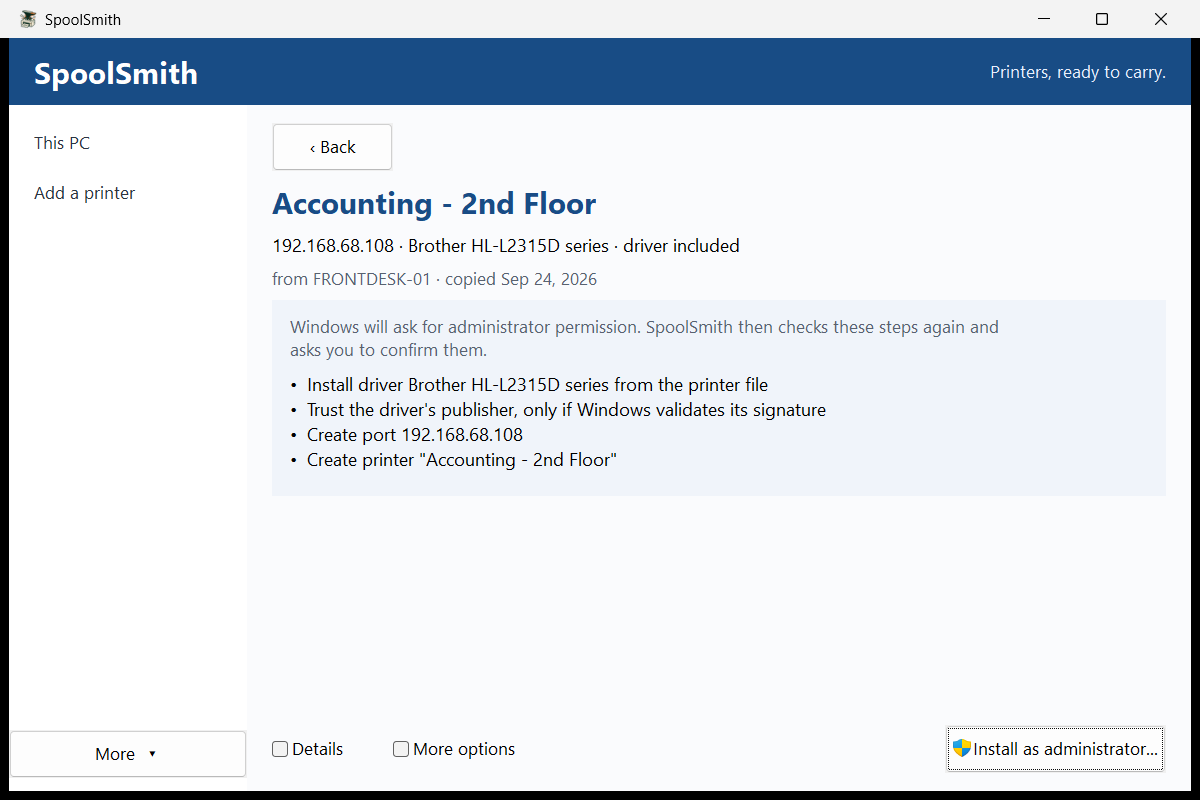
Copy a working printer off one Windows PC — driver included — as a single file. On the next PC, double-click it, drop it on SpoolSmith or paste it in. You see every step before anything changes, and confirm once.
- No account or cloud service
- Runs on the PC, nothing leaves it
- Nothing changes until you confirm
LESS SETUP. MORE PRINTING.
office-printer.ssbDouble-click to install.
Tested on real HP and Sharp printers. Works with any network printer that has a standard Windows driver.
What’s supportedWhat you get
Double-click to install.
Ctrl+C to take it with you.
- Printer files open like documents. Double-click a .ssb, drop it on the window or on spoolsmith-gui.exe, or copy it in Explorer and press Ctrl+V. It opens straight onto one review sheet.
- One sheet, every step. The sheet shows where the printer came from, anything to know first, and the exact steps it will take — prepared the moment it opens. The full plan is one click away under Details.
- Ctrl+C a printer. Select printers on This PC and press Ctrl+C, then paste the .ssb files into a folder, a share or a chat. Or select several and save them as one set.
- No more “restart as administrator”. The Install button carries the Windows shield. Windows asks, SpoolSmith reopens on the same printer, and you confirm the plan there.
- Notes for the ticket. When it finishes, one button copies a plain-text summary of what changed, ready to paste into your ticket.
- Two places, not seven. The sidebar is This PC and Add a printer. Intune packaging, Inspect, the action log and saved setups sit under More.
Why bother
The second printer install
shouldn’t cost as much as the first.
Built for help desks, small-office admins and anyone who sets up the same printer on one PC after another.
- Copy the printer that already works, once. Its driver rides along whenever Windows lets it be exported
- Double-click the file on the next PC
- Read the steps on one sheet and confirm once
- Run it again and it’s still one printer: a matching queue is reused, never duplicated
The desktop app
Your printers.
Ready to carry.
Two places to go: This PC, to take printers off this computer, and Add a printer, to put them on. Every change opens one review sheet, and nothing happens until you confirm it.
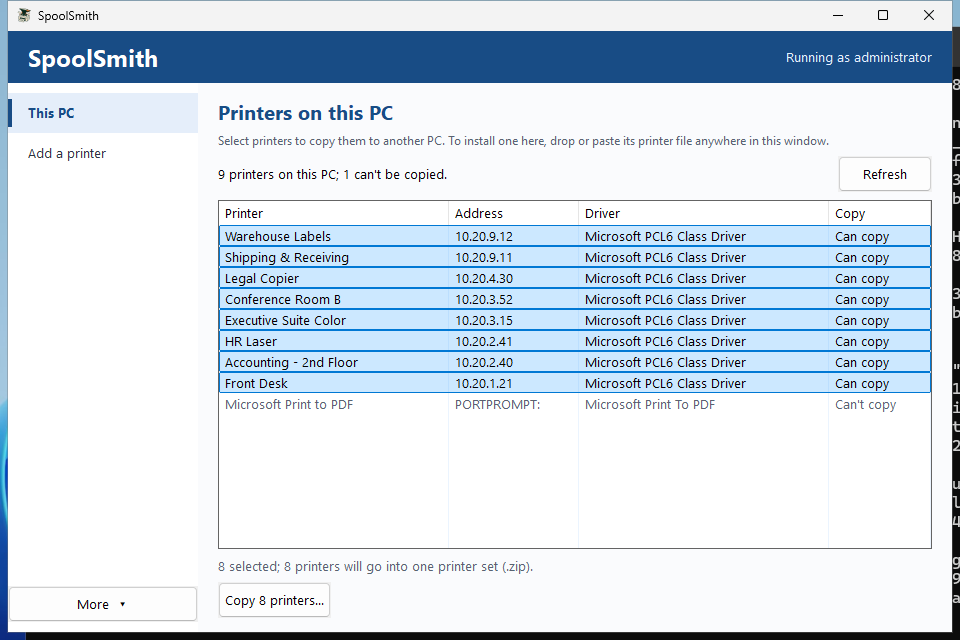
Take printers off this PC
Select one or several and copy them to a file or a set — or press Ctrl+C and paste them into Explorer. Printers that can’t be copied, like Print to PDF, are greyed with the reason.
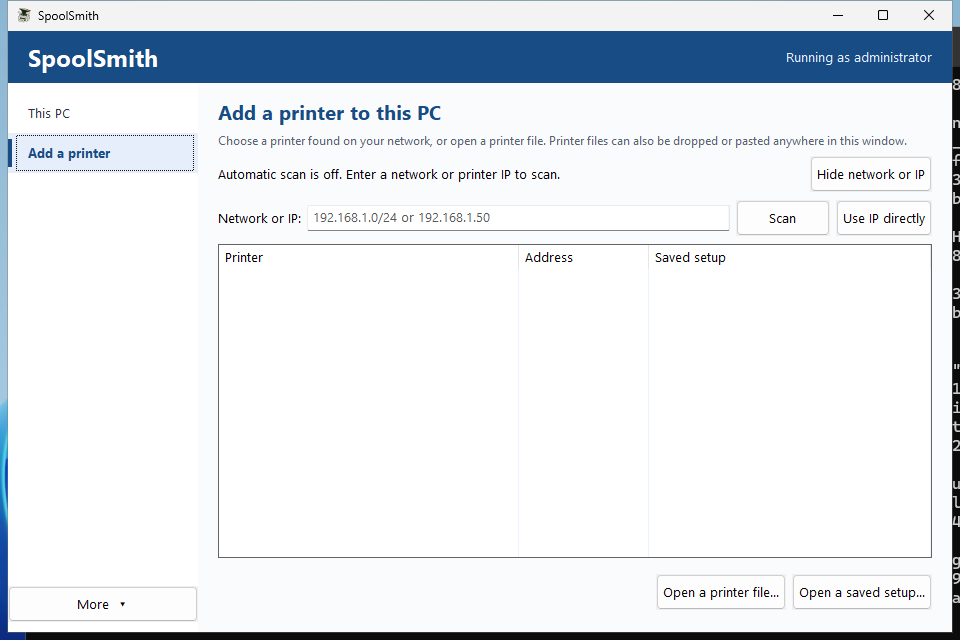
Or find one on the network
The network the PC is on is scanned as soon as SpoolSmith starts. Pick a printer, or scan a different network or one address. A printer set opens as a list, and each printer gets its own review.
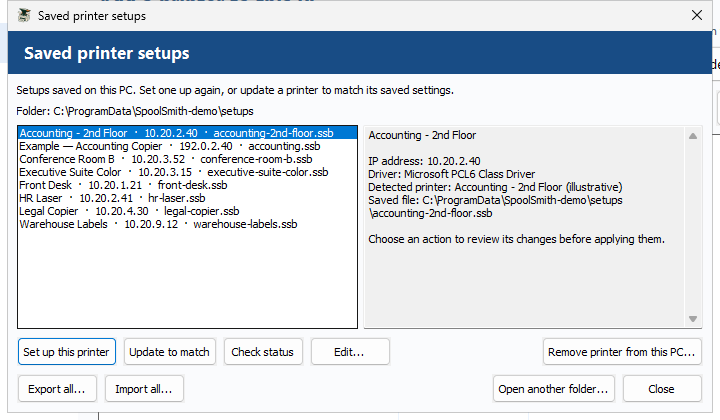
Keep a library of setups
Under More: set a printer up again, update a queue to match, edit with a backup, or check local status. Export and import the whole library, drivers included, as one .zip set.
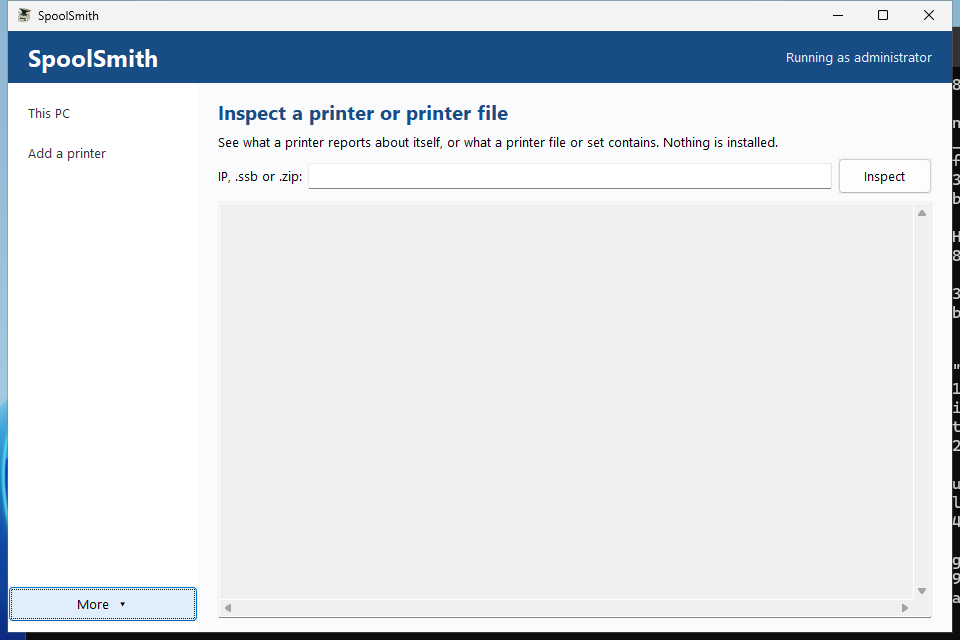
Look inside a printer file
Inspect a .ssb or a set without applying it: every printer, its driver and where it came from. The action log sits beside it under More.
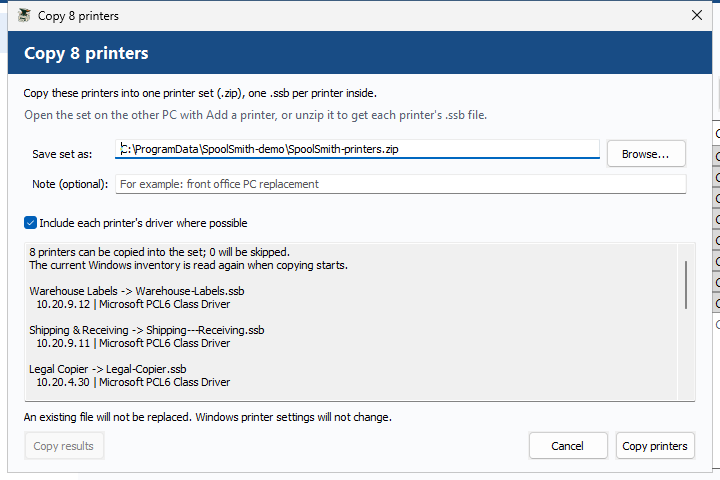
A whole office in one file
Select every printer and save them as one .zip set, one .ssb per printer, drivers included where possible. Stopping saves nothing; the results copy as plain text into a ticket.
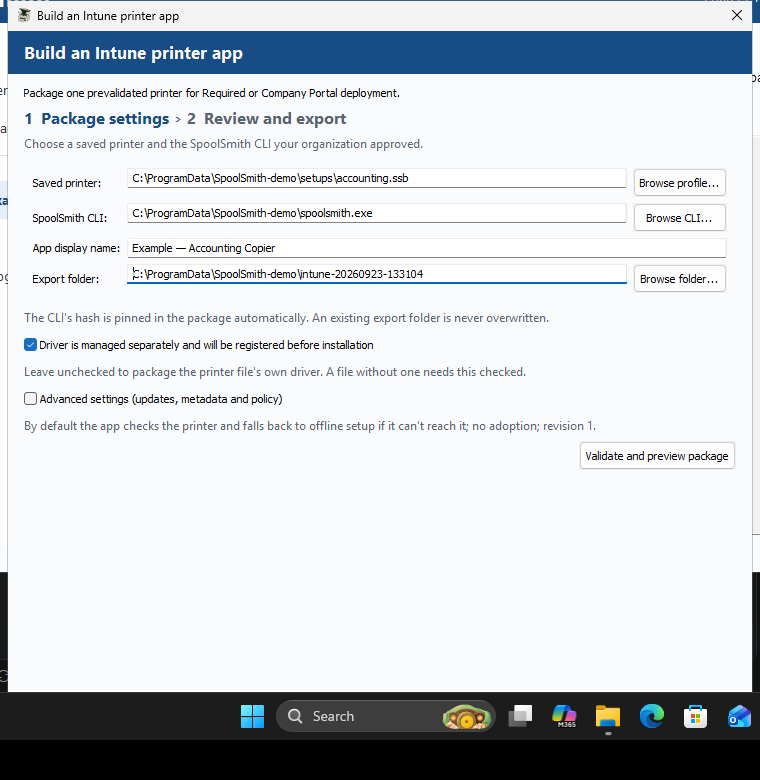
Package it for Intune, locally
A two-step wizard: choose the settings, then validate and review before export. It writes install, uninstall and detection scripts, and creates the .intunewin when Microsoft’s IntuneWinAppUtil.exe sits beside SpoolSmith. No tenant sign-in; upload and assignment stay in your hands.
From this PC to the next
Three steps.
One familiar printer.
Keep a working setup in a file you control. No account, hosted service, or printer management server required.
Start where it works.
In This PC, select a network printer and press Ctrl+C — or Copy 1 printer... to save it somewhere. Its driver comes along whenever it can be exported.
Drivers need administrator; without it, settings only, and it says whyDouble-click it on the next PC.
Paste the .ssb wherever you move files, then double-click it on the destination — or drop it on SpoolSmith, or copy it and press Ctrl+V in the app. Settings and driver travel together.
See every step. Confirm once.
The sheet lists exactly what will change before anything does. SpoolSmith reuses matching settings, so applying the same setup again does not create a duplicate queue.
Not administrator? The shield button asks Windows for youBuilt for everyday IT
Run it again.
It’s still one printer.
Repeated setup should be uneventful. SpoolSmith reuses a matching queue and port, and asks you to update the queue when its settings differ. In the desktop app, choose Update to match from your saved setups.
Need it gone? Remove the queue from its profile. Shared ports and drivers stay available to the printers that still use them.
Example · reapplying a saved profile
> .\spoolsmith.exe add --profile profiles\office.ssbPrinter port✓ Unchanged
Office Printer✓ Unchanged
The same setup, without another queue.
Start with one printer
Make the next setup easier.
Run the desktop app, or the same operations from PowerShell. The v1.5.0 Windows download includes both the desktop app and the command-line tool.
02 / CHOOSE YOUR STARTING POINT
One PC has it. Give it to the next.
- Extract the Windows ZIP on both PCs. On the source PC, open spoolsmith-gui.exe as administrator so the driver can be included.
- In This PC, select the printer and press Ctrl+C, then paste the
.ssbinto a folder, a share or a chat. Or choose Copy 1 printer... to save it. - On the destination PC, double-click the
.ssb(SpoolSmith offers to open them on first run), drop it on spoolsmith-gui.exe, or paste it into the app with Ctrl+V. - Review the steps on the sheet and choose Install. Not running as administrator? Windows asks first, then you confirm the same plan.
Several printers? Select them all and choose Copy N printers... for one .zip set; open it on the other PC and review each printer in turn. The live check compares reported model evidence with the capture; it does not authenticate a unique device. If the printer cannot be reached or its identity cannot be confirmed, the plan reports offline fallback. A conflicting identity still stops setup.
Prefer PowerShell?
# On the source PC, as administrator (the driver is included when it can be)
.\spoolsmith.exe printers
.\spoolsmith.exe copy "Accounting" accounting.ssb
.\spoolsmith.exe copy --all printers.zip# On the destination PC, as administrator
.\spoolsmith.exe apply accounting.ssb --dry-run
.\spoolsmith.exe apply accounting.ssb
.\spoolsmith.exe apply printers.zipDownload. Extract. Open.
The Windows ZIP includes two executables. Open spoolsmith-gui.exe for the desktop app; spoolsmith.exe is the command-line tool. No Go installation or build step is needed.
Explore installed printers, discover devices and save profiles as a standard user. To change Windows printers, use the button with the Windows shield: Windows asks for permission and SpoolSmith reopens on the same printer. Open the app as administrator from the start if you want to copy driver files.
Keep the extracted app in a writable folder. Saved setups live in a profiles folder beside the app by default, or under %LOCALAPPDATA%\SpoolSmith\profiles when the app sits in a read-only place such as an MSI install; use “Open another folder” to work with a different library.
Capture it once. Keep it handy.
Replace the example IP and driver name with yours. To find the driver’s exact name, run Get-PrinterDriver | Select-Object Name.
.\spoolsmith.exe profile capture 192.168.1.50 profiles\office.ssb --name "Office Printer" --driver "EXACT WINDOWS DRIVER NAME"

.\spoolsmith.exe add --profile profiles\office.ssb --dry-run
.\spoolsmith.exe add --profile profiles\office.ssb
The preview shows the setup. The next command asks you to confirm it.
Find the address first.
Replace the example subnet with the network you’re working on. Discovery scans up to 256 addresses and lists printer candidates.
.\spoolsmith.exe discover 192.168.1.0/24Choose a candidate’s IP, then use “I know the IP” to save its profile. Discovery doesn’t choose a compatible driver for you.
Bring the profile. Review the setup.
Copy the saved .ssb file to this PC. Use its included driver files or have a compatible driver installed. SpoolSmith checks the live model when available and reports offline fallback in the plan.
.\spoolsmith.exe add --profile profiles\office.ssb --dry-run
.\spoolsmith.exe add --profile profiles\office.ssb
Matching queue and port settings are reused. Your profile remains available for the next workstation.
One printer file, everywhere
Carry a printer. Or keep a library.
A copied printer
One queue’s settings, captured model evidence and optional driver files. Double-click it, drop it or paste it on the next PC.
The same file, saved for later
Captured directly or copied from Windows, every saved printer uses the same .ssb format. Reuse, edit or check it from Saved printer setups.
Several printers, one set
A plain .zip of .ssb files, one per printer, drivers and all. Copy N printers and Export all make one; so does zipping .ssb files yourself. Each printer in a set is still reviewed and confirmed on its own.
Know what fits
Made for Windows.
Clear about its limits.
SpoolSmith is an early, portable tool for repeatable network printer setup. Start with one known printer and validate its output.
What remains & validation prioritiesWindows x64 · RAW TCP 9100
Requires the Windows Print Spooler and PrintManagement cmdlets. Copy supported TCP/IP queues, use a saved profile with a compatible Windows driver, or discover IPv4 candidates. USB queues, shared queues, IPP and LPR setup are outside the current workflow.
HP, Sharp, and any standard driver
Tested with multiple HP and Sharp network printers. SpoolSmith copies the Windows queue and its driver rather than relying on a model list, so any network printer with a standard Windows driver, including Canon and other brands, is set up the same way. A true two-PC transfer and a live address change still need validation on real hardware.
One workflow, two ways to work
The Windows download includes desktop copy/apply for single printers and printer sets, address changes, profile editing, local status, saved-setup transfer and offline setup. The screenshots show the real Windows app. Copying and applying work with any brand, because SpoolSmith copies the setup that already works rather than looking the printer up in a model list.
Package a printer for Intune
Turn a validated profile into a reviewable Win32 app — install/uninstall/detect scripts and the exact commands to paste into Intune — from the CLI or the desktop wizard, and create the .intunewin too when Microsoft's IntuneWinAppUtil.exe sits beside SpoolSmith. Entirely local: no tenant sign-in, no upload, no assignment. Uploading and assigning the package in Intune stays a manual step. How it works
Automatic driver downloads
SpoolSmith does not fetch OEM drivers automatically — bring a compatible installed driver, a copied bundle with driver files, or a supported local archive. The download is a portable ZIP; both executables are Authenticode-signed, so Windows shows a named publisher instead of an unknown one.
A useful place to start
Guides, without the guesswork.
Step-by-step workflows, a full command reference, and the validation record behind every claim. All documentation
Workflow guide
Copy your first printer
Copy one printer or a whole PC, bring the drivers and apply each on the next PC.
Workflow guideSet up by address
Discover printers, let Windows handle IPP, and keep reusable printer files.
Deployment guidePackage for Intune
Export a reviewable Win32 app and .intunewin from one printer file.
ReferenceCommand line
Every command, option and exit code in one place.
ReferenceThe desktop app
This PC, Add a printer, the apply sheet and everything under More.
Release evidenceSee what was checked
Safety rules, supported printers, and what real hardware has proven.
Before the next printer call
A few practical answers.
What happens to my older JSON setups?
Version 1.1 uses .ssb files for every saved printer. Existing .ssb bundles still work. Older JSON profiles and JSON library exports must be recreated: copy an installed queue, or capture its address and driver into a new .ssb. Keep the originals for reference; renaming .json to .ssb does not convert it.
Do I need administrator access?
You can discover printers, inspect files and save profiles without elevation. Changing Windows printers needs administrator rights: in the desktop app, the Install button carries the Windows shield. Only when you press it does Windows ask for permission; SpoolSmith then reopens elevated on the same printer, prepares the plan again and asks you to confirm it. Copying driver files also needs administrator, so open the app that way on the source PC. The command-line tool never elevates itself.
Can I set up a printer before it is on the network?
Yes. Open a saved printer file with a compatible driver available. If the printer is unreachable or its identity cannot be confirmed, setup falls back to offline and explains that in the plan before you confirm. You can also choose offline setup directly. A live identity conflict still stops setup. Local status checks Windows settings, not physical printing.
Will this replace an existing printer?
Matching settings are reused. Conflicting settings stop a normal add; use an explicit update after reviewing the new plan. Shared ports and drivers are retained on removal. If an operation is interrupted, an unused port can remain.
Does a printer set include drivers?
Yes, whenever each printer’s .ssb carries one. Copies include the driver where it can be exported (as administrator); a printer copied without it says why, and the other PC then needs that driver installed. A separate vendor archive referenced by a saved setup is not embedded: copy it too and keep its relative path.
Is a driver from another PC safe to install?
SpoolSmith checks every driver file against the hashes recorded when it was copied, and Windows checks the driver’s signature before staging it. A driver that fails either check is not installed. The hashes catch corruption and edits, not a compromised source PC, so trust a copied driver as much as the PC it came from. Choose settings only if you’d rather install drivers yourself.
Will a copied driver install on a brand-new PC?
Yes, without importing certificates by hand. Windows can refuse a correctly signed driver because it has never been told to trust that publisher. When the driver’s catalog signature is valid, SpoolSmith adds that exact signer certificate to the PC’s Trusted Publishers store before installing, and says so in the plan you confirm. Certificates only ever come from a signature Windows itself validates, never from the printer file, and nothing is added to the Root store. Unsigned drivers are left for Windows to accept or refuse.
Yours to keep, inspect, and improve
A few saved printers today.
A shorter setup tomorrow.
Free, MIT-licensed software for people who do the printer setup. Try it on one printer: copy it, open it on a second PC, read the sheet, and decide from there.
Download SpoolSmith v1.5.0Signed ZIP and MSI · SHA-256 checksums on the release page